Your first vehicle in Listwyse, start to finish
Create a vehicle, add photos, enhance them, generate a showroom set and a film — the whole flow in one short walkthrough.
TL;DR
Create a vehicle in the Hub, add photos by guided capture, upload or listing URL, then run Enhancements, a Template set or a Motion film from the same Studio screen. Everything stays attached to that vehicle for download later.
1. Create the vehicle
Everything in Listwyse hangs off a vehicle. From the Hub's Vehicles list, choose New vehicle and give it a name you'll recognise — the year, make and model, or your stock number.
2. Add photos
There are three ways in, and you can mix them:
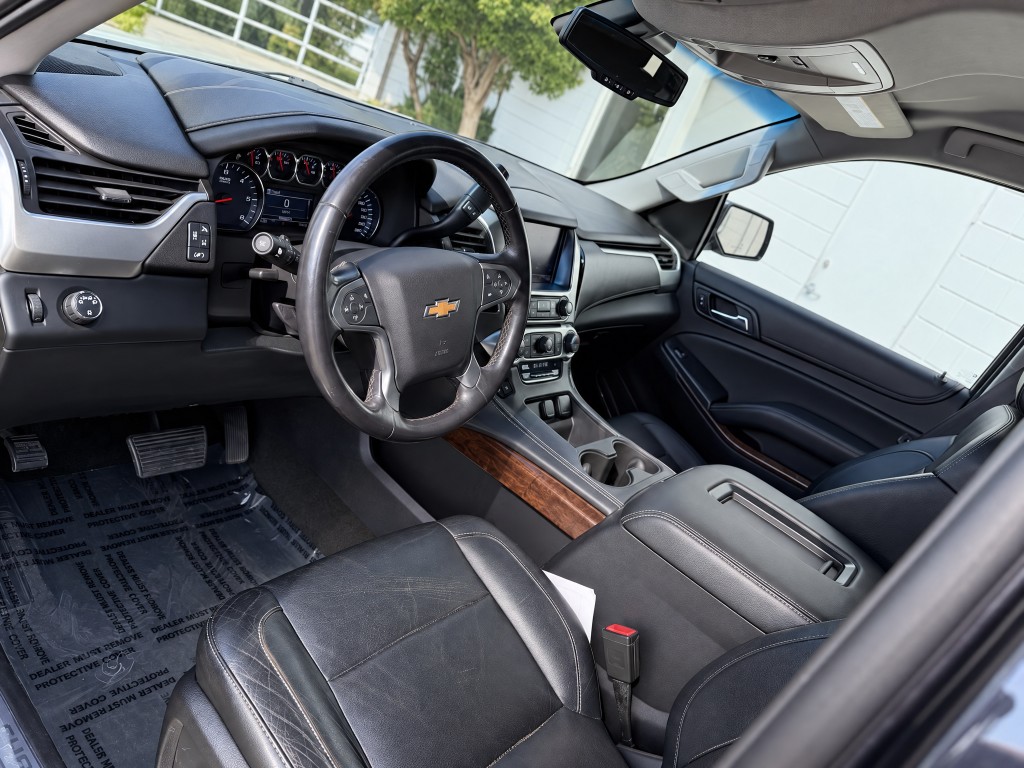
- Guided capture: scan the QR code with your phone and follow the eleven-shot walkaround. Each photo uploads as you take it.
- Upload: drag and drop up to 48 JPEG, PNG or WebP photos, up to 4 MB each.
- Listing URL: paste the vehicle's page and Listwyse imports the gallery.
Listwyse sorts every photo by angle automatically and ignores window stickers, spec cards and price graphics so they're never used as references.
3. Enhance what you shot
Open the Enhance tool to retouch lighting, reflections, framing and clutter while keeping the car where it was photographed. Your dealership's saved preset is applied automatically; toggle between original and enhanced to check each result, and redo any photo you're not happy with.
4. Generate a showroom set
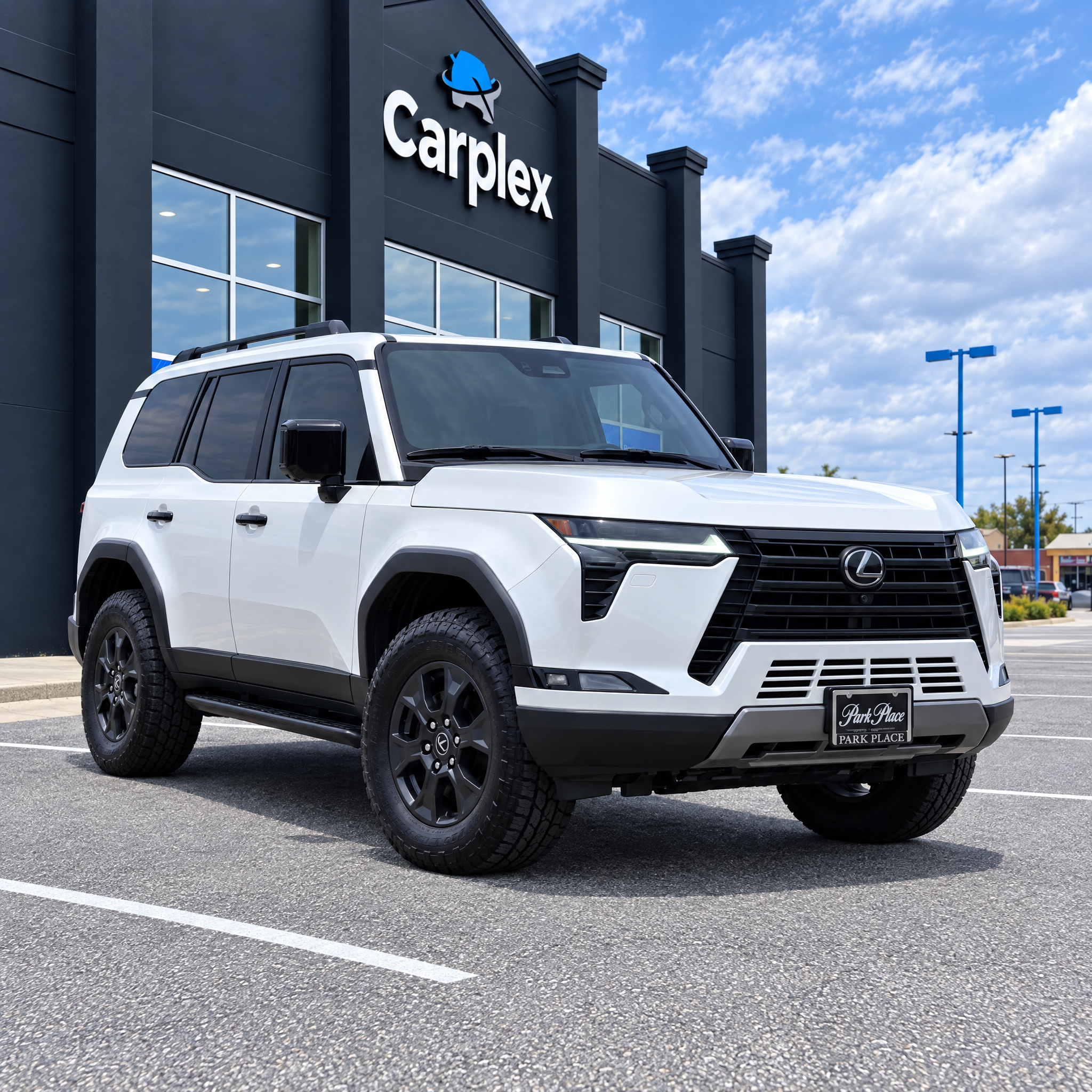
Switch to Images and pick a template — Infinity, Lumen, Signature, Horizon or your own studio. Each vehicle's full set of angles counts as one image set in your package.
5. Make a film
Switch to Video and choose the same look for a matching film. Add the 17-character VIN if you'd like a spoken voiceover built from the decoded vehicle data.
6. Review, download, publish
Review every image and film before publishing — AI can occasionally get fine details wrong. Download individual files or everything as a ZIP. If you publish AI-generated scenes, add a short disclosure line; our disclosure guide has wording you can copy.