Live wireframe guides
A glowing outline of the car for every angle shows exactly where to stand and how to frame. Turn guides off once your team knows the drill.
Zero photography experience required. Smart AR-guided frameworks inside the app ensure every lot attendant captures identical angles and precise cutouts without edge clipping, and the camera fires itself the moment the framing is right.
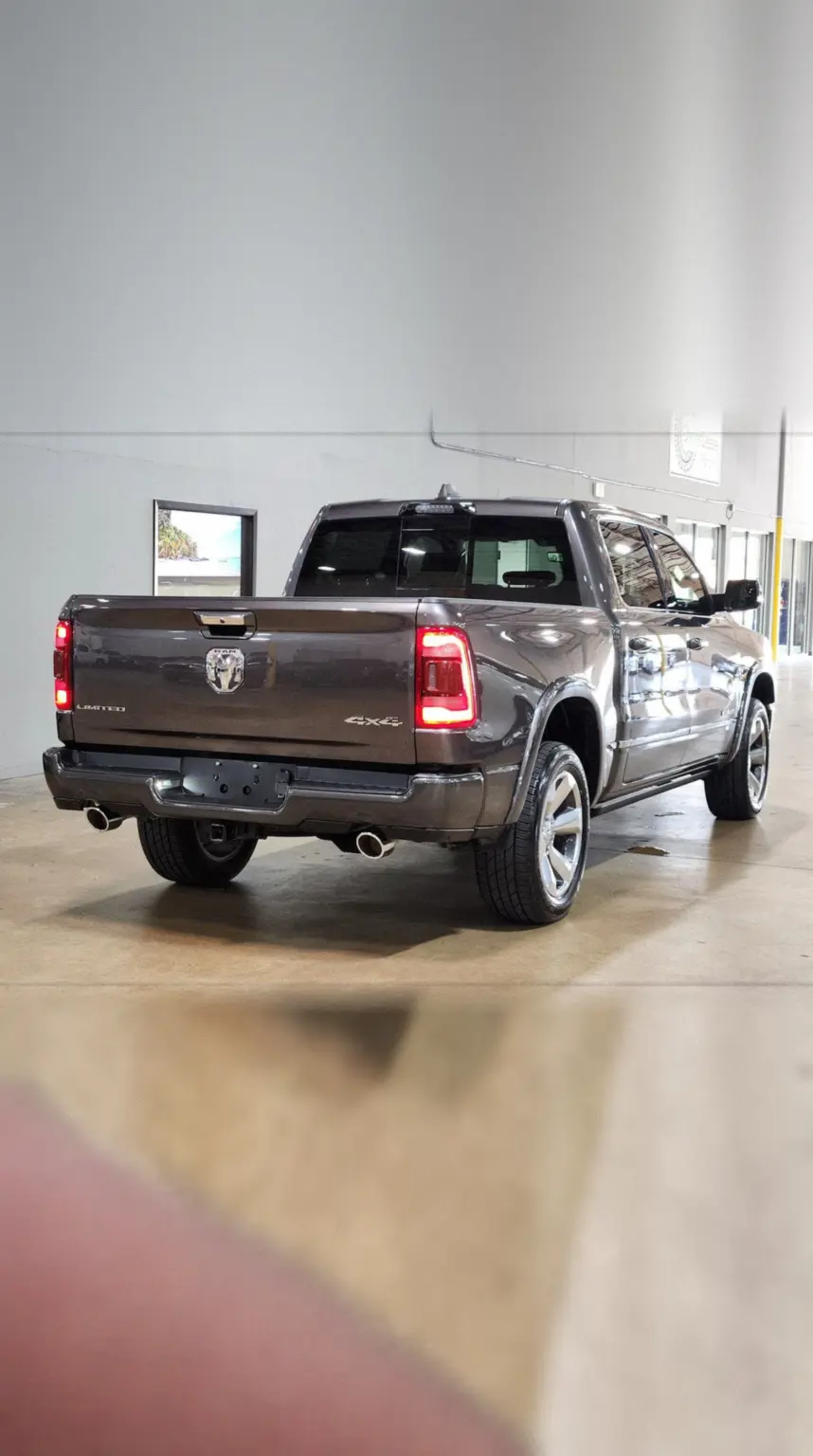 Rear 3/4 capturedTagged and uploaded to Studio
Step 4 · Exterior
Rear 3/4
Move to the rear three-quarter. Show the tail lamps and the near haunch.


 4AUTOSkip
Why guided
When a different person photographs every car, every car looks different. The Guided Capture Workflow gives your porter, salesperson or detailer the same shot list, the same framing and the same coaching every time, so the output is consistent before AI touches a pixel.
What's in the camera
A glowing outline of the car for every angle shows exactly where to stand and how to frame. Turn guides off once your team knows the drill.
Framing is scored as you move. When it locks, the shutter fires on its own. No fumbling, no blurry taps.
A top-down minimap shows the angles you've got and where to stand next, so nobody misses the back corner again.
"Step back a little." "Turn slightly left." "Hold still." Nudges anyone can follow, no photography experience needed.
Every photo uploads the moment it's taken, tagged with its angle and pre-sorted for Studio. Nothing is lost if someone walks away.
Start a vehicle on your desk, scan the QR code and the camera opens in your phone's browser for that exact car. No app store.
Inside the camera
Everything a pro would tell your porter, on screen while they shoot.
Eleven segments across the top. Green once a shot is uploaded, pulsing for the one you're on.
Scores your framing while you line up, then confirms the moment each photo is uploaded.
A top-down map of the car shows the angles you have and exactly where to stand next.
Rear 3/4 capturedTagged and uploaded to StudioStep 4 · Exterior
Rear 3/4
Move to the rear three-quarter. Show the tail lamps and the near haunch.
4AUTOSkipThe outline of the car for this angle. Fill it and the framing matches every other car on your lot.
Step back. Turn slightly left. Hold still. Nudges that get anyone to the right shot, first time.
The ring around the shutter fills as you line up, then takes the photo on its own at 100%.
The walkaround
Five angles on the way around, then the cabin and details. The same set, in the same order, for every car on your lot. It takes about two minutes.
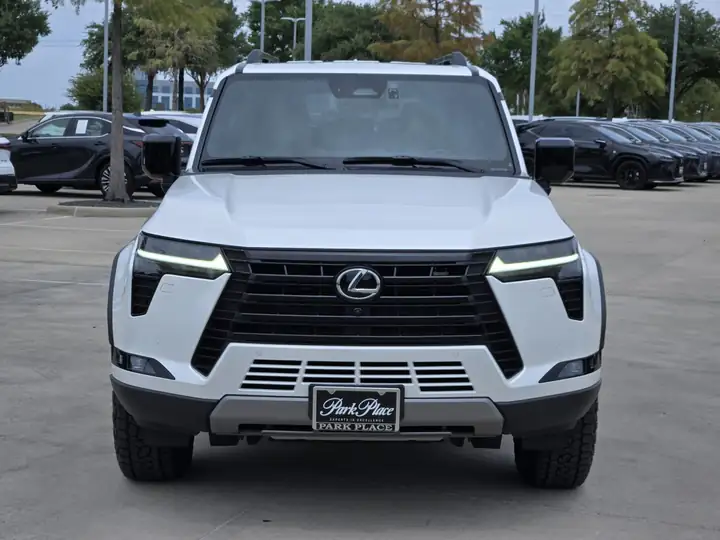 01
01Front on
Stand in front of the car. Fill the outline with the grille and both headlights.
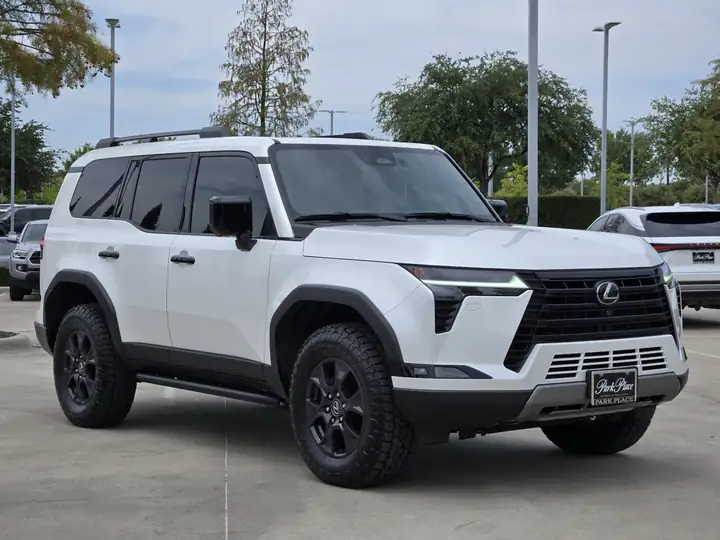 02
02Front 3/4
Walk to the front three-quarter. Show the grille, a headlight, and the near flank.
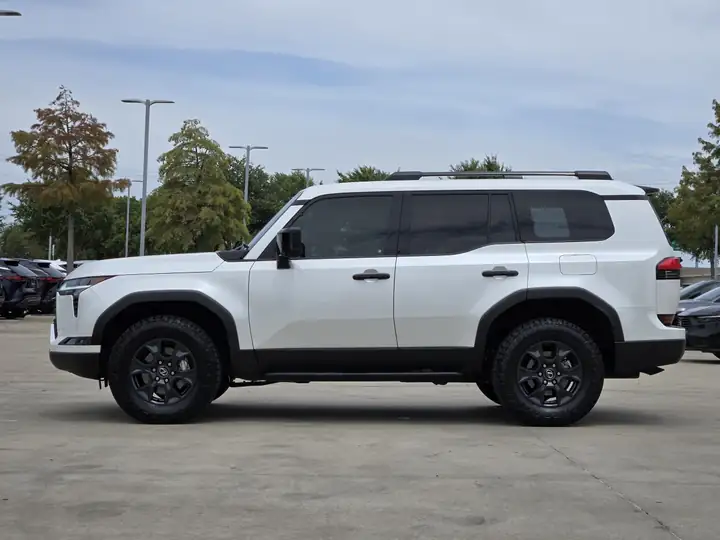 03
03Side on
Stand square to the doors. Keep the full profile in frame, wheels on the ground line.
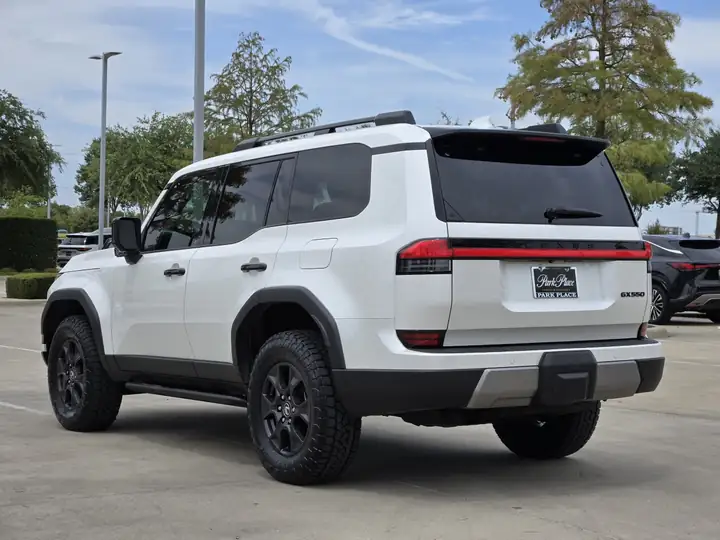 04
04Rear 3/4
Move to the rear three-quarter. Show the tail lamps and the near haunch.
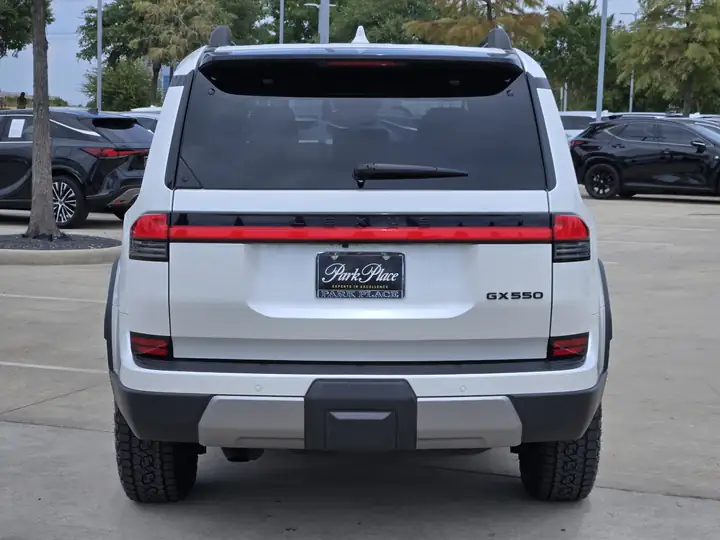 05
05Back
Stand behind the car, centred on the badge. Both tail lamps in the outline.
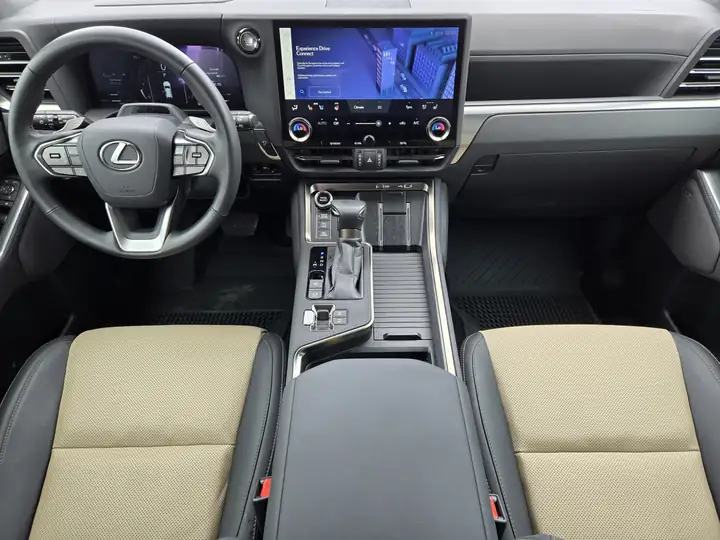 06
06Front row - head on
From the cabin, look forward so both seats, the wheel and the dash fill the frame.
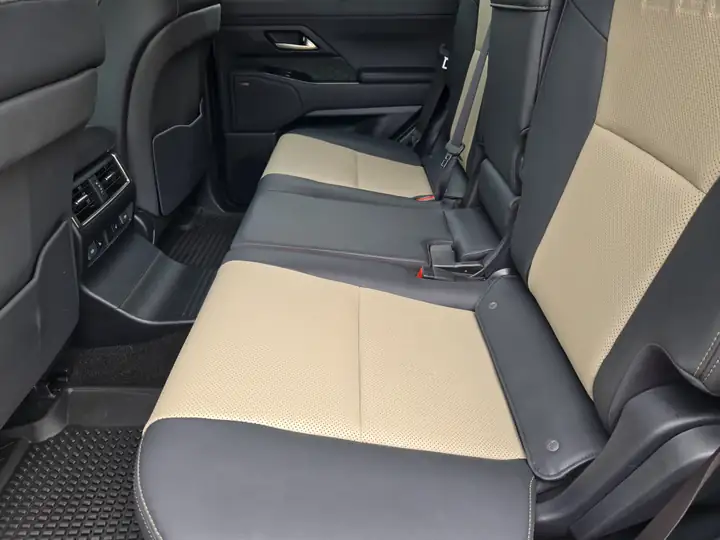 07
07Back row - side on
Shoot across the rear bench. Show the seat bolsters and the door on the far side.
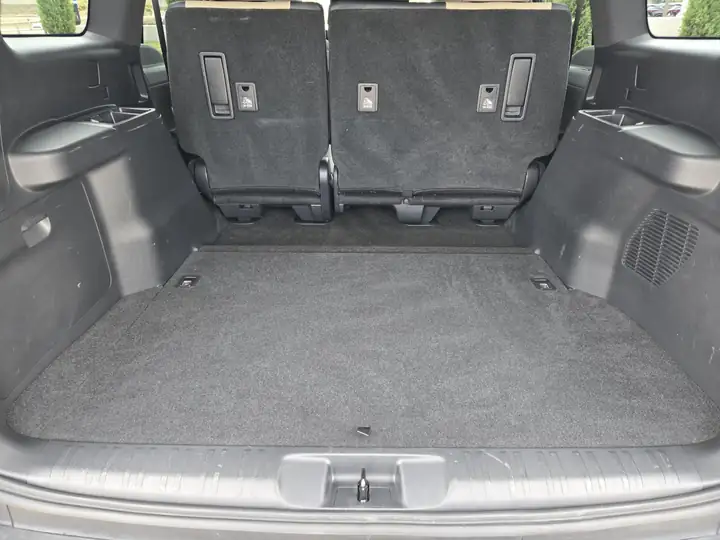 08
08Trunk
Open the trunk and shoot down into the load space. Fill the outline with the well.
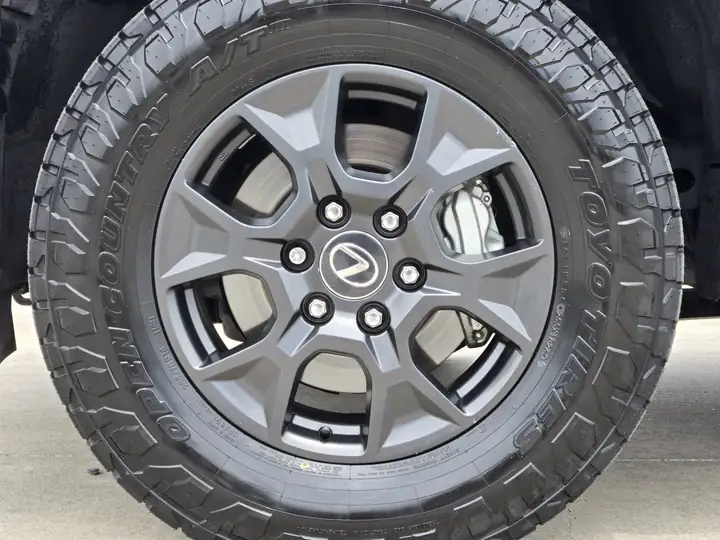 09
09Wheel close up
Kneel at the front wheel. Centre the rim; spokes should fill the circle.
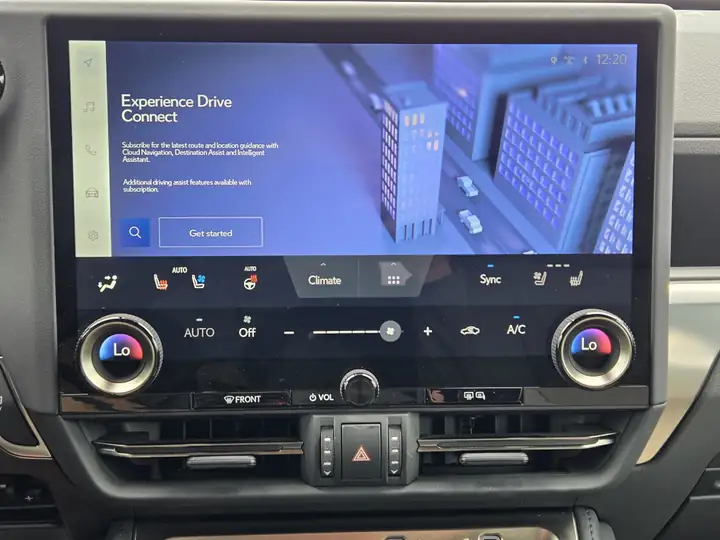 10
10Dashboard
The whole dash across the frame: wheel, vents, screen and climate. Not a screen-only crop.
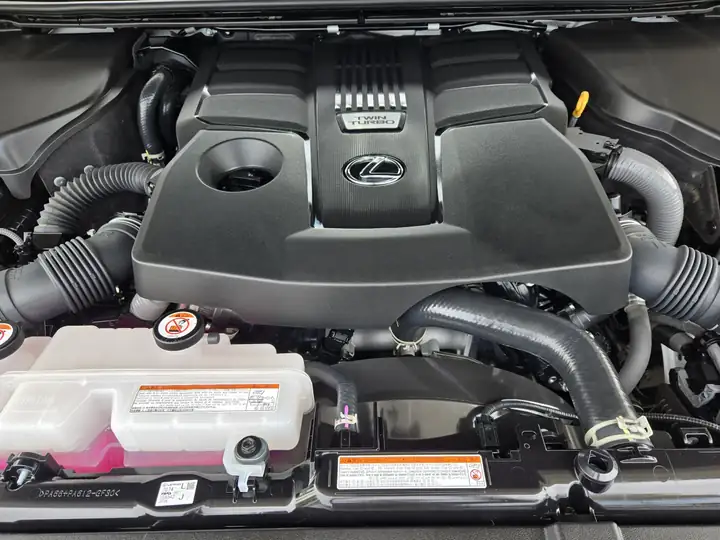 11
11Engine bay
Open the hood and shoot down so the cover and bay fill the outline.
How it works
Scan the VIN or add it in Listwyse Drive OS, or let your inventory feed create it for you.
Scan the QR code and follow the minimap around the car. Line up each wireframe and the camera takes the shot for you.
Land in Studio with every angle in place, ready for enhancements, a template set or a film.
Already have photos?
If your vehicles are already photographed, skip the walkaround. Listwyse takes the photos you have and sorts them for you.
Add photos
Three ways in. Use whichever you already have.
Scan to capture on your phone
Opens the guided camera for this vehicle
Drop photos here
JPEG, PNG or WebP · up to 48 per vehicle
Paste a listing URL
FAQ
No. Guided Mobile Capture runs in the phone's browser on iPhone or Android, and can be added to the home screen so it opens like an app.
Anyone on your team with a Listwyse login. Invite teammates from Listwyse Drive OS with a shareable link; no photography experience needed.
Tap the shutter whenever you like. Auto-capture is a shortcut, not a gate, and the coaching prompt tells you what's keeping the frame from locking.
Yes. Experienced staff can hide the wireframe and minimap with one tap and keep the shot list and uploads.
You can pick photos from the phone's library instead, one step at a time, and they're tagged with the right angle.
Capture needs a connection because each photo uploads immediately. If your lot has patchy coverage, take the photos with the normal camera and upload them later.
No. Capture and uploads are included; your package covers the image sets and films you create.
Works well with
We'll walk your staff through their first car on a call. It takes about as long as the walkaround.